There is nothing more frustrating than sitting down to finish a project, only to find that your "E," "S," or spacebar has suddenly decided to stop working. Whether you are a student, a professional, or a casual gamer, a malfunctioning laptop keyboard can halt your productivity instantly. While your first instinct might be to rush to a repair shop or start shopping for a new device, many keyboard issues are actually simple, software-related, or caused by minor debris accumulation that you can resolve at home.
In this guide, we will walk you through the diagnostic process to determine if you are dealing with a software glitch, a driver conflict, or a physical hardware failure. You don't need to be a computer engineer to fix these issues; with a little patience and the right tools, you can often restore your keyboard to full functionality in under an hour. Let’s get your typing back on track.
Troubleshooting Keyboard Issues: A Diagnostic Approach
Before you start unscrewing your laptop case, it is important to understand the root causes of keyboard failure. Most issues stem from one of three categories: driver corruption, operating system bugs, or physical hardware obstruction.
Step-by-Step Diagnosis
1. The "Restart" Rule
Sometimes, the simplest solution is the most effective. A temporary system glitch can freeze keyboard input.
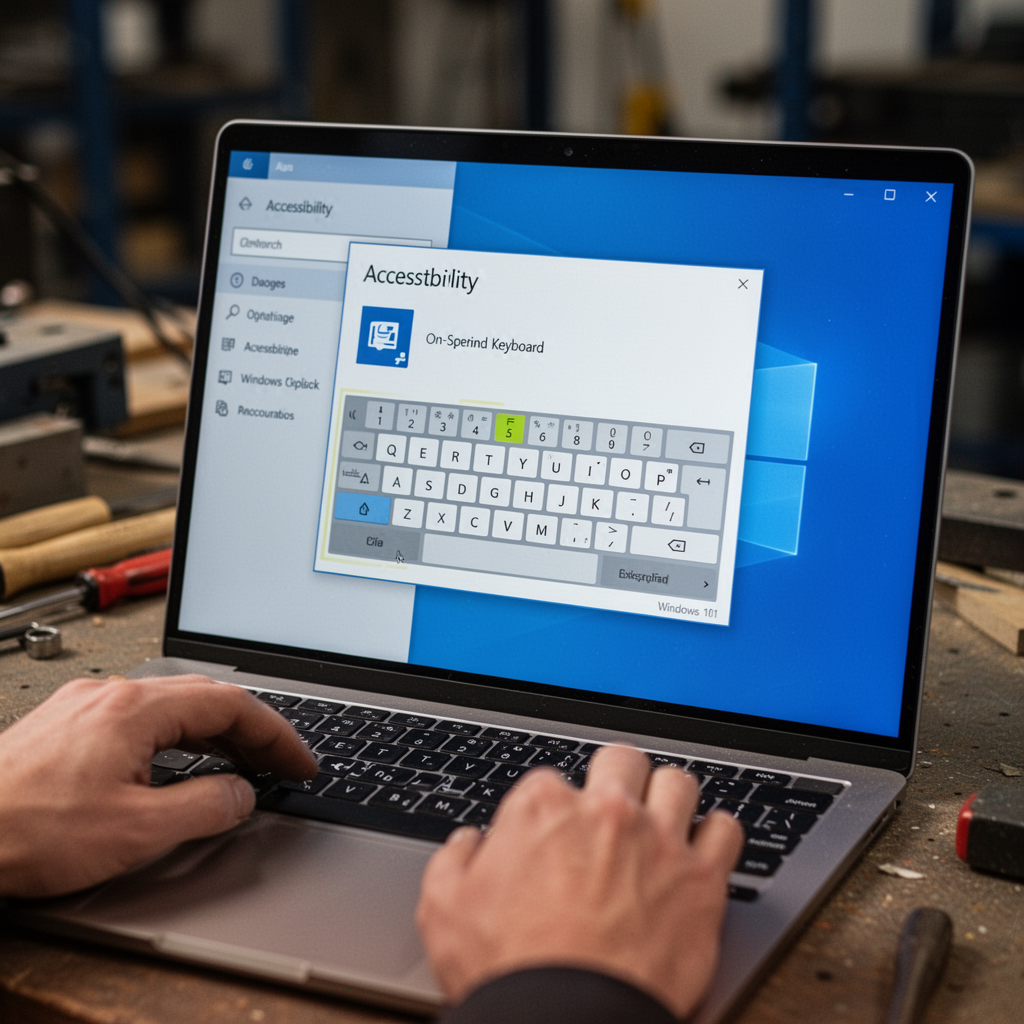
- Action: Restart your laptop completely. If you cannot type your password, use the On-Screen Keyboard (found in the Accessibility settings on the login screen) to log in.
2. Check for Driver Conflicts
If your keyboard works in the BIOS but not in Windows, your Device Driver is likely the culprit.
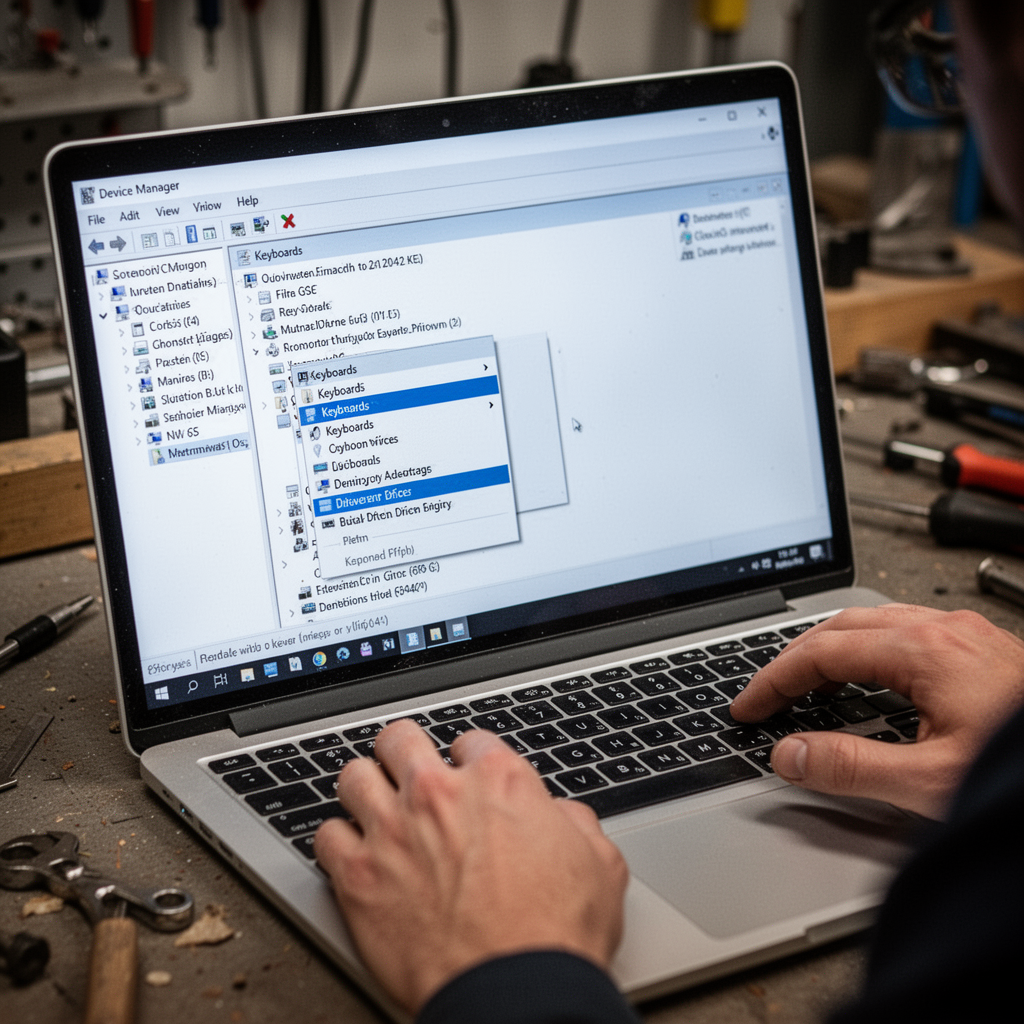
- Action: Right-click the Start button and select Device Manager. Expand the "Keyboards" section. If you see a yellow exclamation mark, right-click the driver and select "Update driver" or "Uninstall device" and restart your laptop to force a reinstall.
3. Inspecting for Physical Debris
Crumbs, dust, and pet hair are the primary killers of laptop switches.
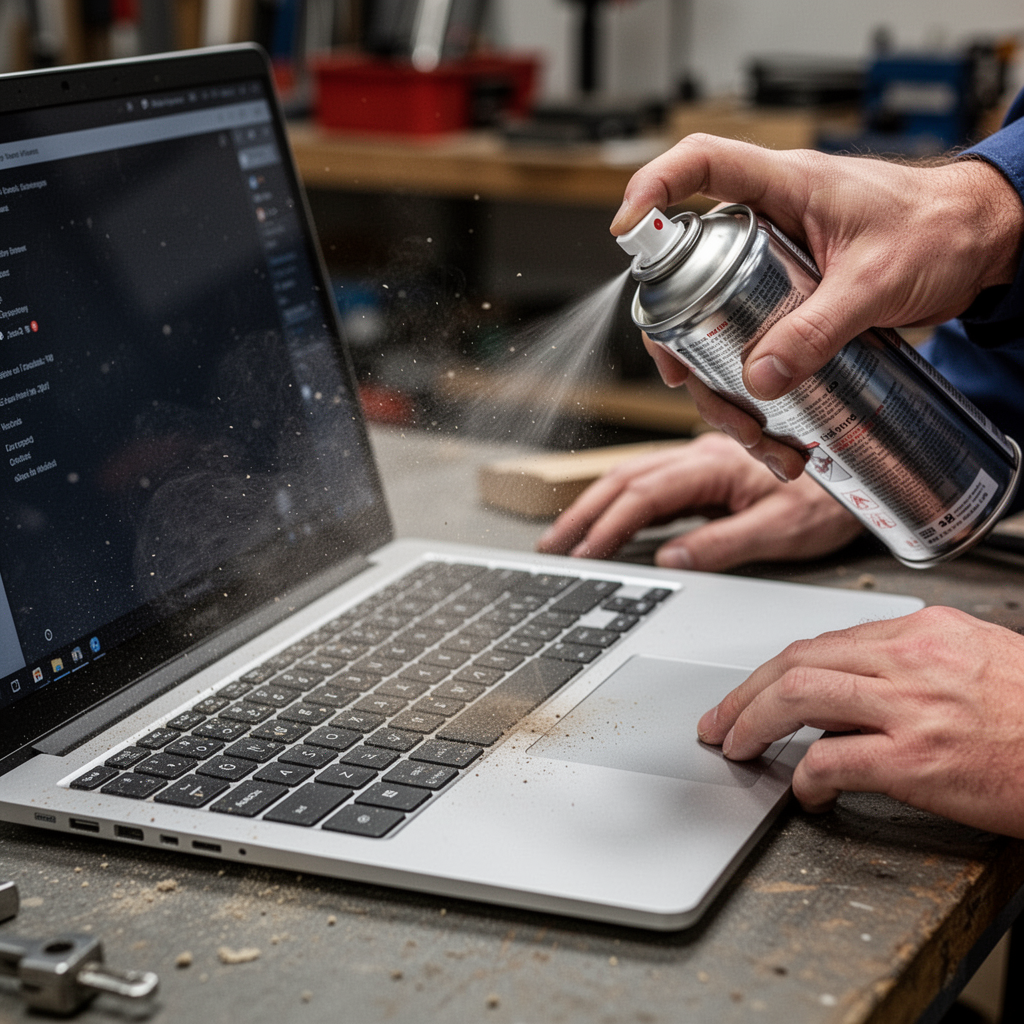
- Action: Power off your laptop. Turn it upside down and gently shake it to dislodge large particles. Then, use a can of compressed air to blow out the spaces between keys.
Advanced Hardware Repair: When Cleaning Isn't Enough
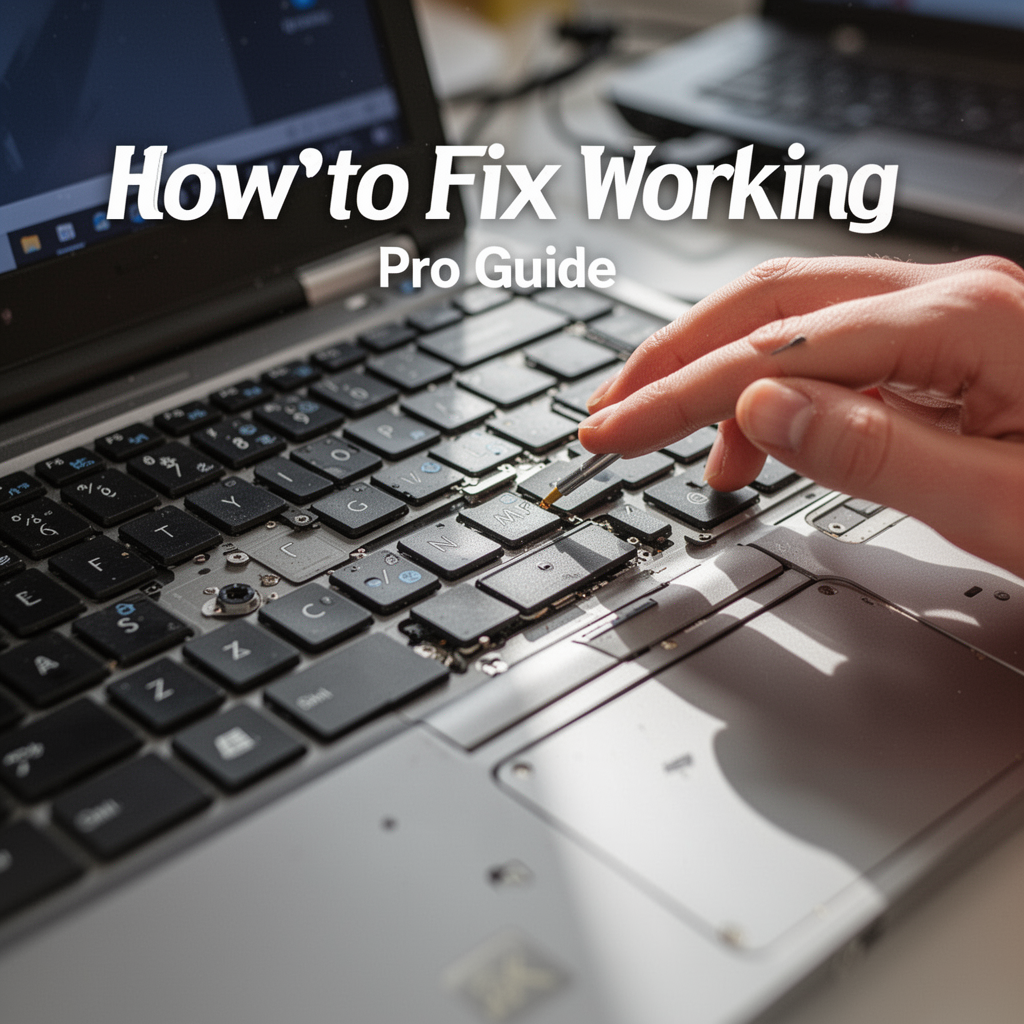
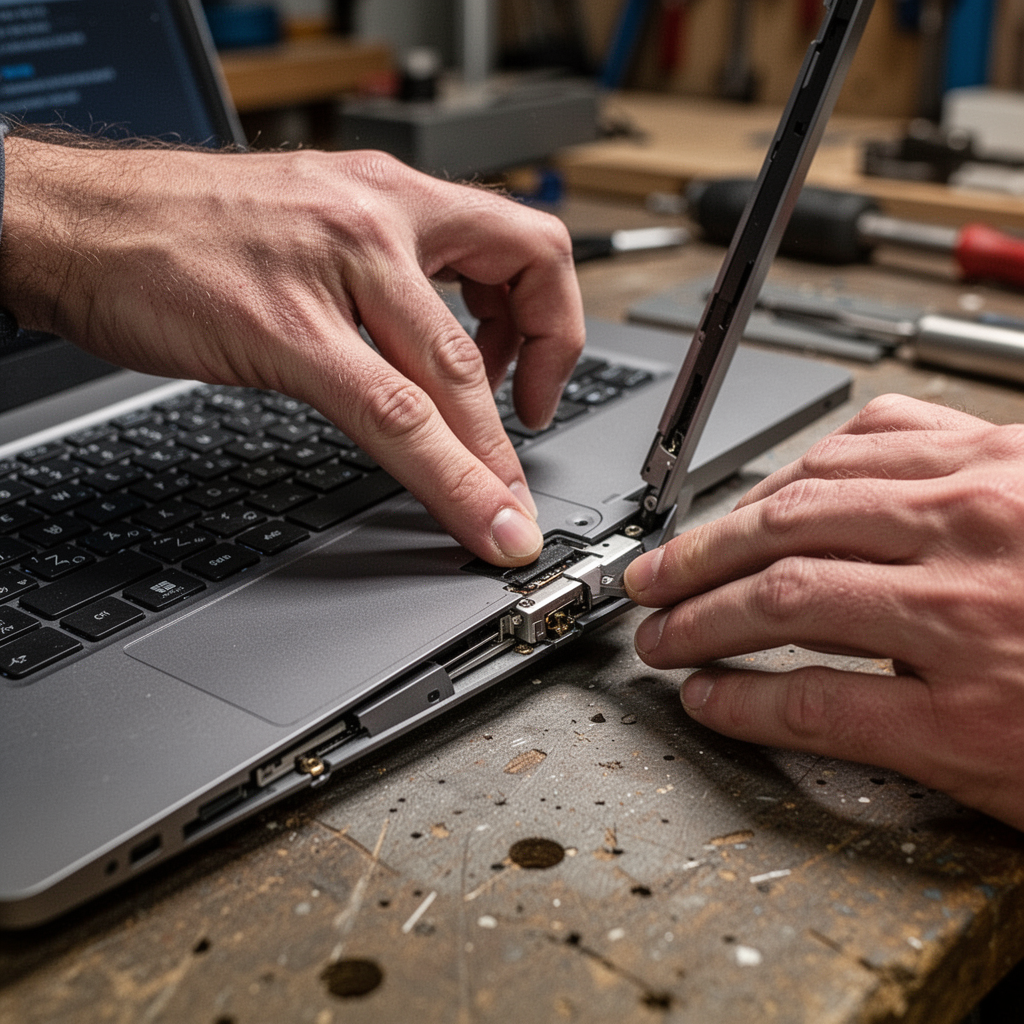
If cleaning and driver updates haven't worked, you may be facing a mechanical failure. For many modern laptops, individual key switches can be cleaned or replaced if you are careful.

ASUS ROG Strix G16 (2025) Gaming Laptop, 16” FHD+ 16:10 165Hz/3ms Display, NVIDIA® GeForce RTX™ 5060 Laptop GPU, Intel® Core™ i7 Processor 14650HX, 16GB DDR5, 1TB Gen 4 SSD, Wi-Fi 7, Windows 11 Home
Tools and Materials Required
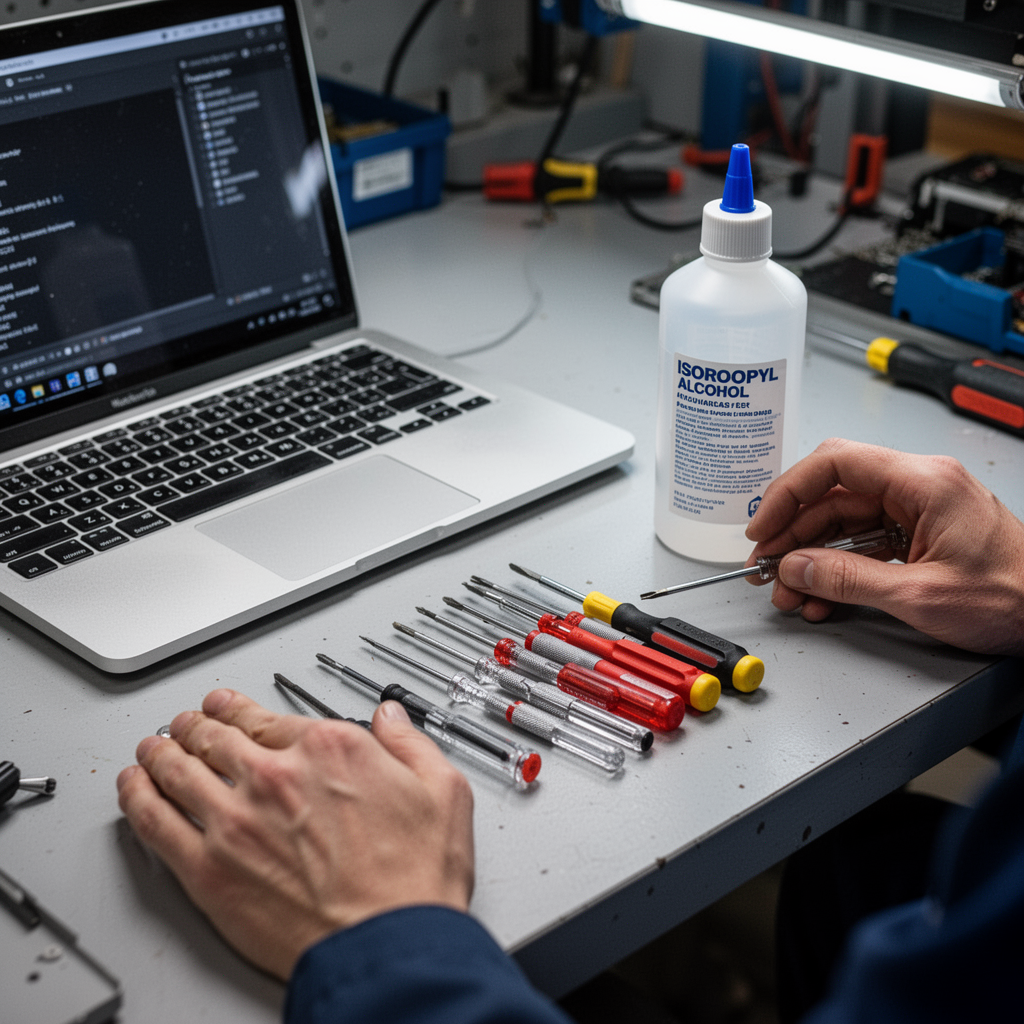
- Precision Screwdriver Set: For opening the chassis if necessary.
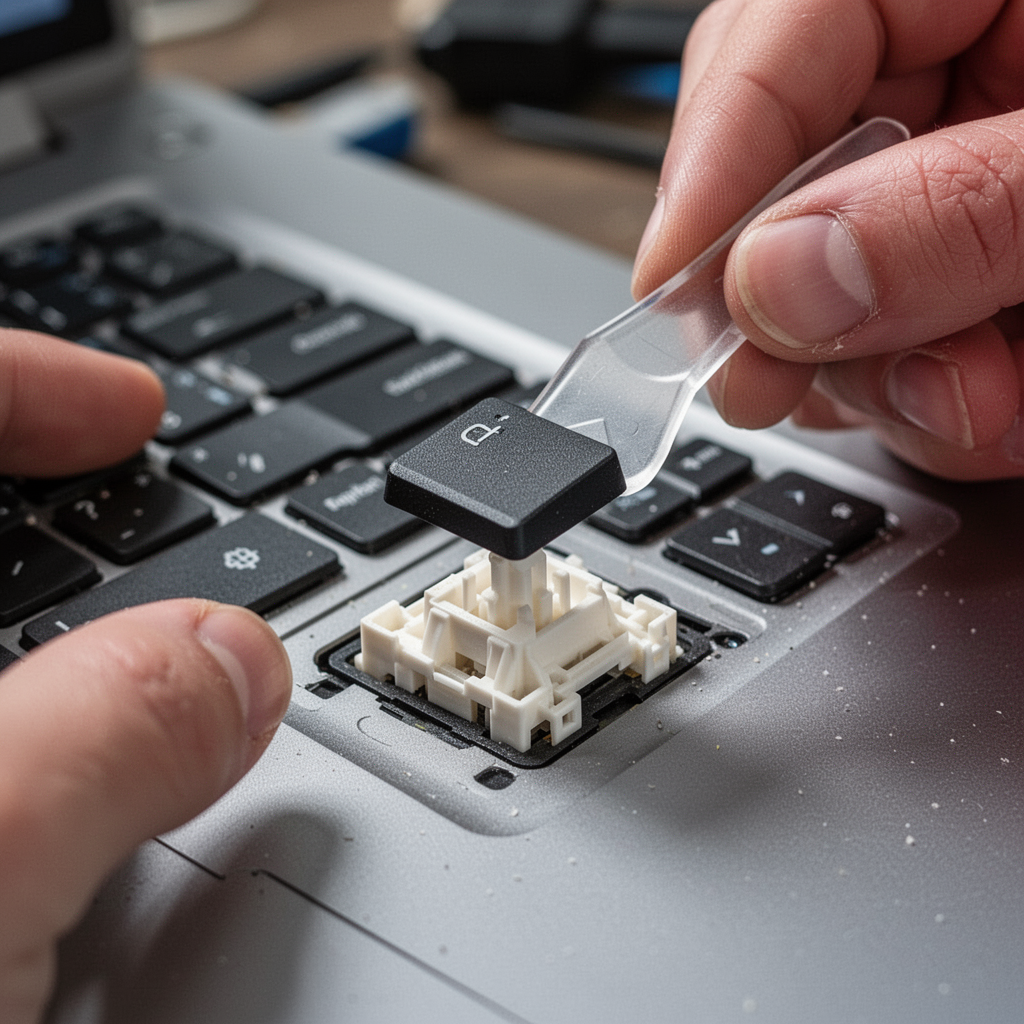
- Plastic Pry Tool: To pop off stubborn keys safely.
- Isopropyl Alcohol (90%+): For cleaning contacts.
- Microfiber Cloth: For wiping surfaces.
- Replacement Keyboard Module: If the internal ribbon cable is damaged.
Step-by-Step Cleaning Tutorial
- Preparation: Always unplug your power adapter.
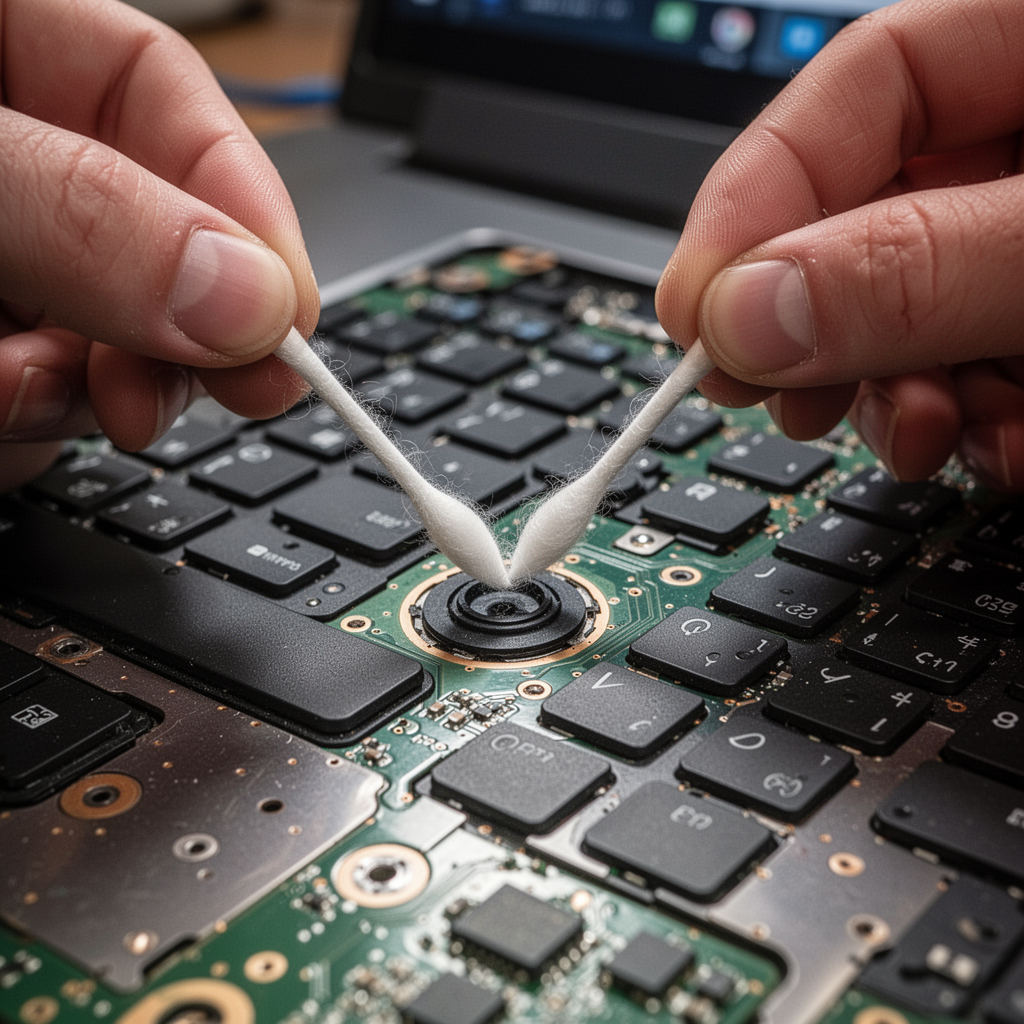
- Key Removal: Use a plastic pry tool to gently lift the corner of the non-responsive key. Be extremely gentle, as the scissor switch mechanism underneath is fragile.
- Contact Cleaning: Dip a cotton swab in isopropyl alcohol and gently clean the rubber dome contact.
- Reassembly: Snap the key back into place by aligning the hinges and pressing down until you hear a soft "click."
Buying Guide: Replacement Parts and External Keyboards
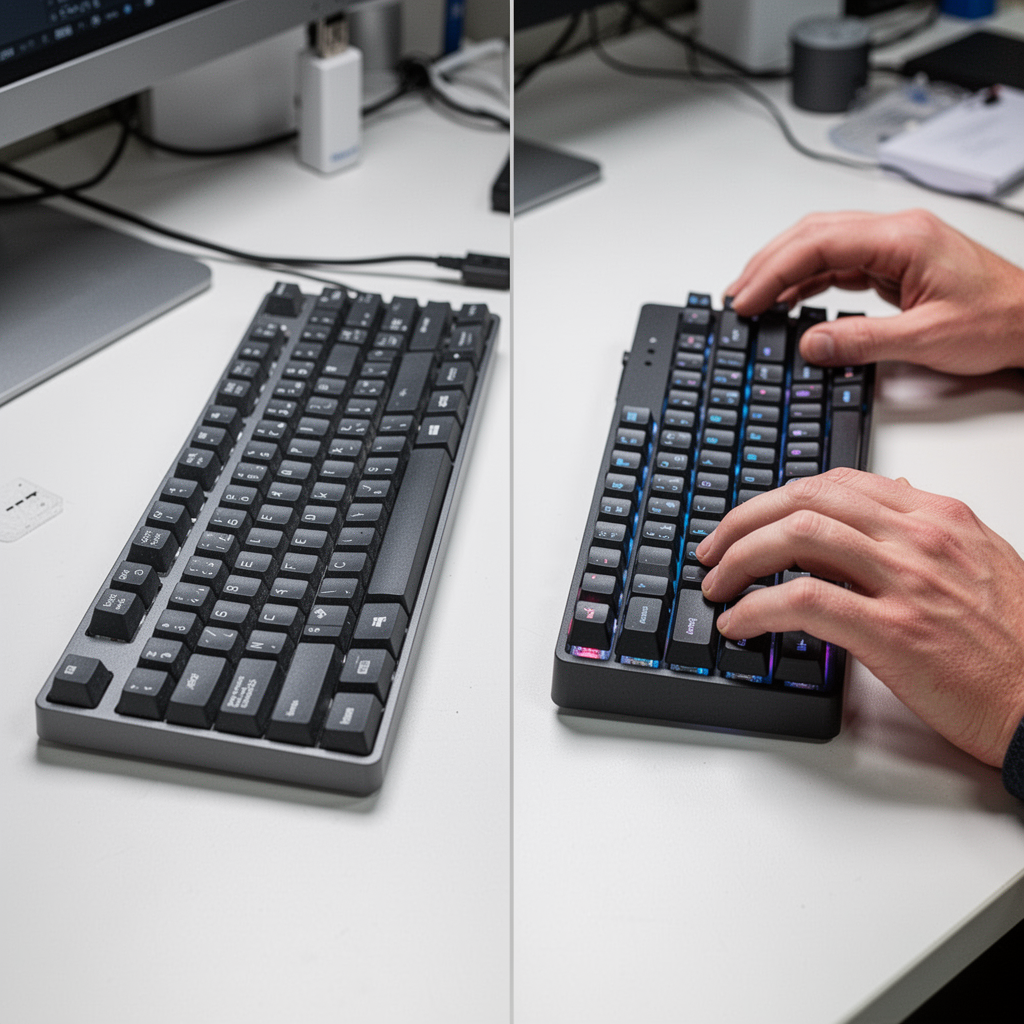
If the internal keyboard is physically broken beyond repair, you have two choices: replace the internal keyboard (which can be complex) or switch to a high-quality external keyboard.
What to Look For in a Replacement
- Compatibility: Check your specific laptop model number (usually found on a sticker on the bottom).
- Build Quality: Look for mechanical switches if you do a lot of typing.
- Connectivity: Wired (USB) keyboards offer zero latency, while wireless options provide a cleaner desk setup.
Top Options by Budget
- Budget Pick: A standard USB membrane keyboard. Great for emergency backups.
- Mid-Range: A slim, scissor-switch wireless keyboard that mimics the laptop feel.
- Premium: A mechanical keyboard for long-term durability and ergonomic comfort.
Beginner Tips and Common Mistakes to Avoid
- Tip: Always keep a cheap backup USB keyboard in your drawer. It’s a lifesaver if your main keyboard dies before a big deadline.
- Mistake: Don’t use water or household spray cleaners on your keyboard. Liquid can seep into the motherboard and cause permanent short-circuit damage.
- Mistake: Don’t force a key back on if the plastic hinge is broken. You will likely damage the underlying sensor.
Frequently Asked Questions (FAQ)
- Can I fix a spilled liquid issue? If you spilled liquid, turn off the laptop immediately, disconnect the power, and let it dry for 48 hours. If it still doesn't work, the keyboard likely needs a professional replacement.
- Why do only some keys work? This often indicates a hardware issue with the keyboard's internal matrix. You may need to replace the entire keyboard unit.
- Will an external keyboard work if my internal one is broken? Yes, plugging in a USB keyboard will bypass the internal one entirely.
- How do I know if it’s a hardware or software issue? Try booting into your laptop's BIOS/UEFI settings menu. If the keyboard doesn't work there, it is a 100% hardware issue.
- Is it hard to replace an internal laptop keyboard? It depends on the model. Some are easy to pop out; others require removing the entire motherboard. Consult a YouTube teardown video for your specific model first.
- Can I use a vacuum to clean the keyboard? It is generally not recommended as vacuums can create static electricity that damages sensitive internal components. Use compressed air instead.
- What if the keys are typing the wrong characters? Check your language settings in Windows (e.g., US vs. UK layout) or ensure that "Num Lock" isn't causing your letter keys to act like a number pad.
- Should I use rubbing alcohol? Only use high-percentage isopropyl alcohol (90% or higher). Lower percentages contain water, which is bad for electronics.
Blueprint Section
[IMAGE_PROMPT: A technical exploded-view diagram showing the layers of a laptop keyboard: the keycaps, the plastic scissor hinges, the rubber dome layer, the membrane circuit board, and the internal laptop chassis.]
Safety Tips
- Static Electricity: Before touching the inside of your laptop, touch a metal object to discharge any static electricity from your body.
- Battery Safety: If your laptop has a removable battery, remove it before working on the keyboard. If it's internal, be careful not to puncture the battery when prying.
- Power Down: Never perform hardware work while the laptop is plugged into a wall outlet.
Conclusion
A malfunctioning keyboard is a major inconvenience, but it is rarely a terminal diagnosis for your laptop. By methodically working through the software checks—updating drivers, checking language settings, and performing a hard reset—you can often resolve the issue without spending a dime. If the problem is physical, regular cleaning and careful maintenance can often bring keys back to life.
If you find that your internal hardware is damaged, don't panic. Investing in a reliable external keyboard is an excellent way to continue your work while you decide whether to perform a full internal repair or upgrade your system entirely. Remember: the key to hardware maintenance is patience. Take your time, document the screws you remove, and treat your device with care. If you follow these steps, you’ll be back to typing at full speed in no time!