The Xbox Series X is a powerhouse of gaming performance, but its true magic is only realized when you are fully immersed in the soundscape. Whether you are pinpointing enemy footsteps in a competitive shooter or soaking in the orchestral score of an open-world epic, the right audio setup is non-negotiable. However, many gamers find themselves stuck when trying to figure out how to connect wireless gaming headset to Xbox Series X. Unlike PCs, where Bluetooth pairing is universal, the Xbox ecosystem uses a specific wireless protocol that can leave some standard headsets "in the dark."
New Bee Bluetooth Earpiece V5.0 Wireless Handsfree Headset with Microphone 24 Hrs Driving Headset 60 Days Standby Time for iPhone Android Samsung Laptop Trucker Driver (Black)
If you’ve recently upgraded your console or bought a new headset, you might be frustrated by connectivity issues or compatibility confusion. Don't worry—you aren't alone. This guide is designed to strip away the technical jargon and provide a clear, foolproof path to getting your audio up and running. Whether you are using an official Xbox-licensed device or a generic USB-dongle headset, we will walk you through every setting and button press required to achieve crystal-clear sound. Let's get you back in the game.
Why Proper Connection Matters
Achieving a low-latency, high-fidelity connection is vital for immersion and competitive advantage. A poorly connected headset can result in audio lag—a "death sentence" in fast-paced games—or frequent disconnections during intense multiplayer sessions. Ensuring your headset is correctly paired to the Xbox Wireless protocol or the correct USB port ensures you get the full benefit of Windows Sonic, Dolby Atmos, and DTS Headphone:X spatial audio features that define the Series X experience.
Tools Required
- Your Xbox Series X console.
- The Xbox Wireless Controller.
- A compatible wireless gaming headset (with either an Xbox Wireless chip or a USB-C/USB-A wireless dongle).
- A USB-C charging cable (often used for initial firmware updates).
Step-by-Step Tutorial: Native Xbox Wireless Headsets
If your headset is "Designed for Xbox," the process is almost identical to pairing a controller.
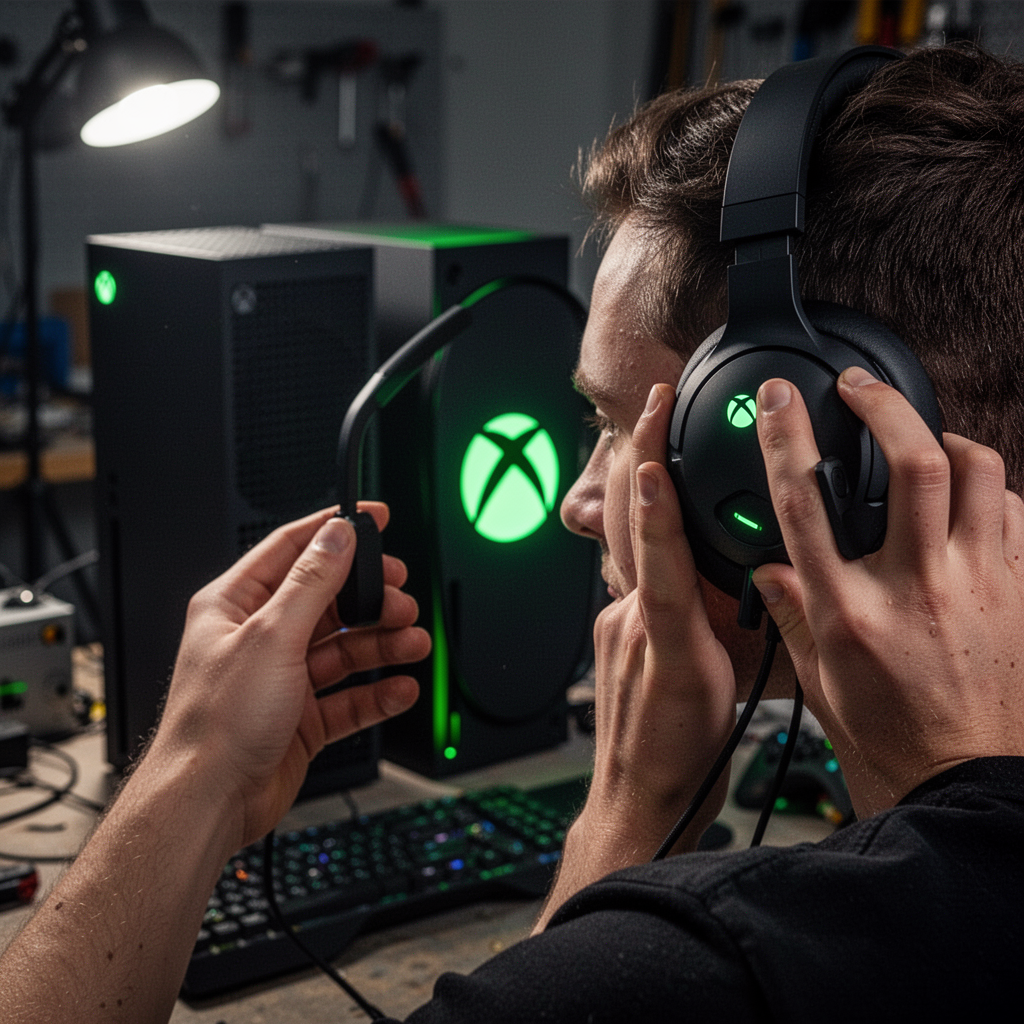
Step 1: Power on your Xbox Series X and your headset.
Ensure both devices have sufficient battery life to complete the pairing process.

Step 2: Put the headset into "Pairing Mode."
Consult your manual, but usually, this involves holding the power or pairing button on the headset until the LED indicator starts blinking rapidly.
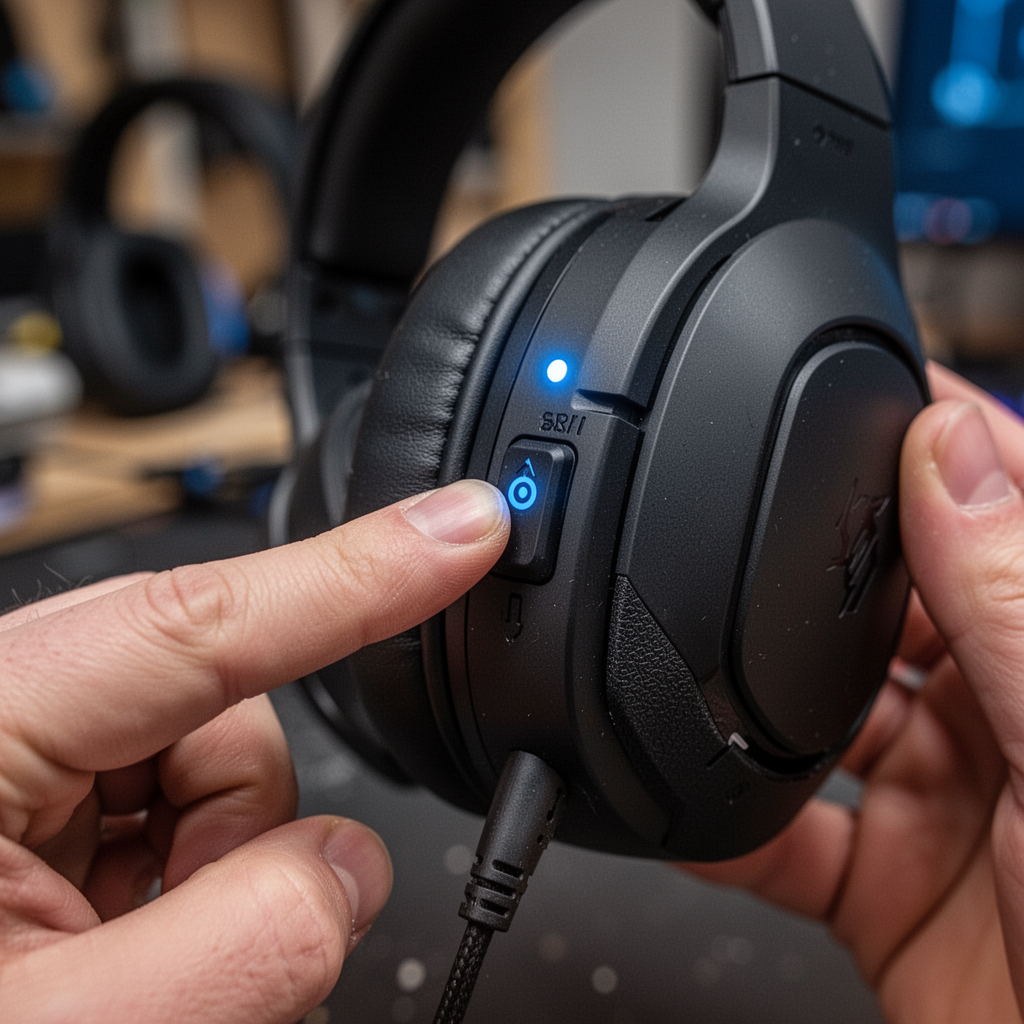
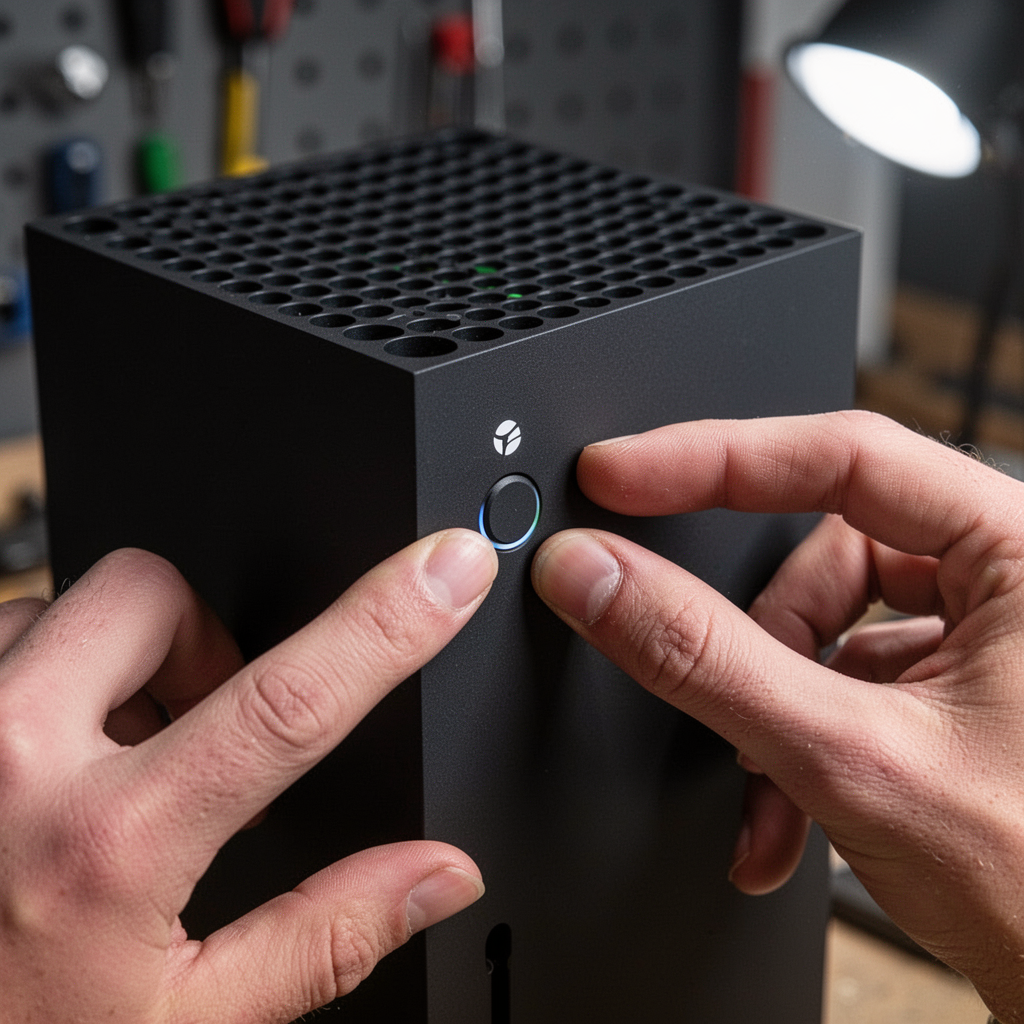
Step 3: Press the "Pairing" button on the Xbox console.
This is the small circular button located on the front of the Series X, near the bottom right.
Step 4: Confirm the connection.
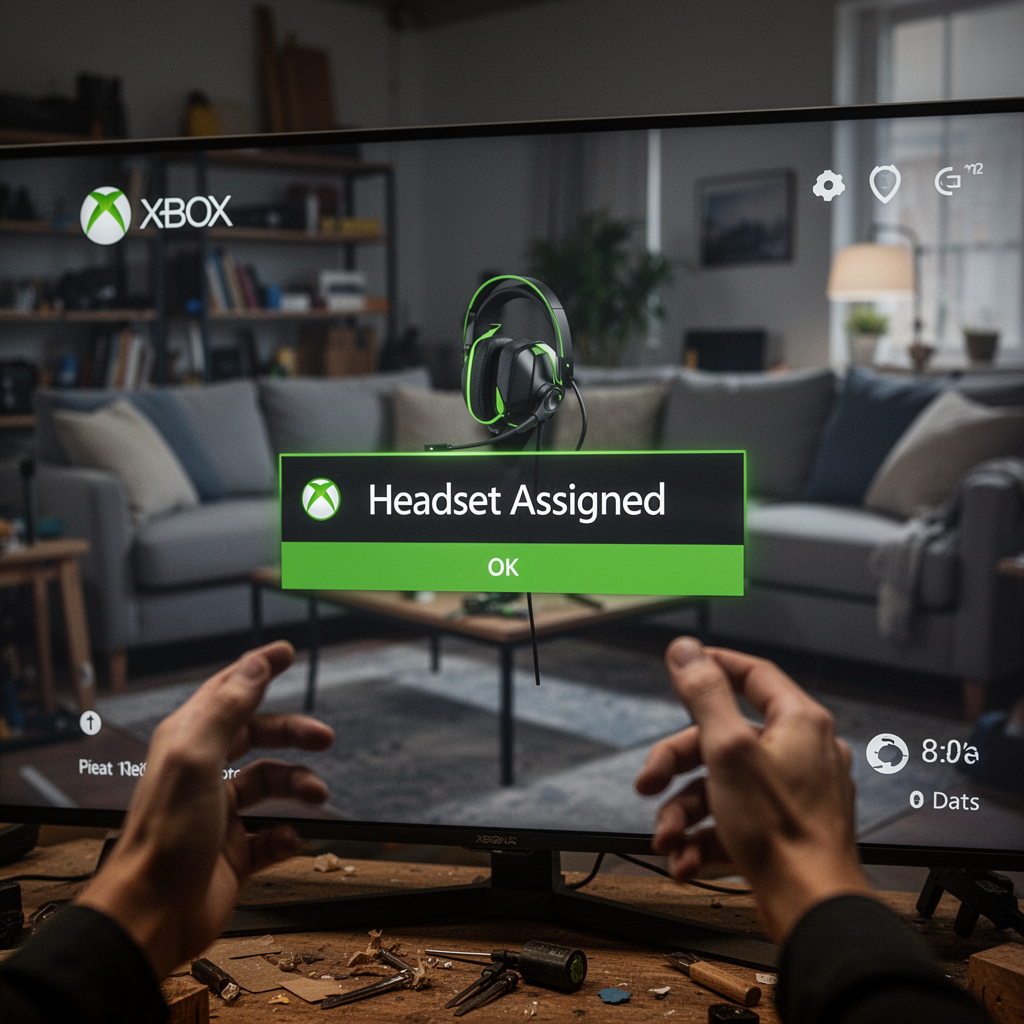
The LED on your headset should stop flashing and turn a solid color. You should see a notification on your TV screen saying "Headset Assigned."
Step-by-Step Tutorial: USB Dongle Wireless Headsets
Many headsets rely on a USB transmitter (dongle) to bypass the proprietary Xbox Wireless protocol.
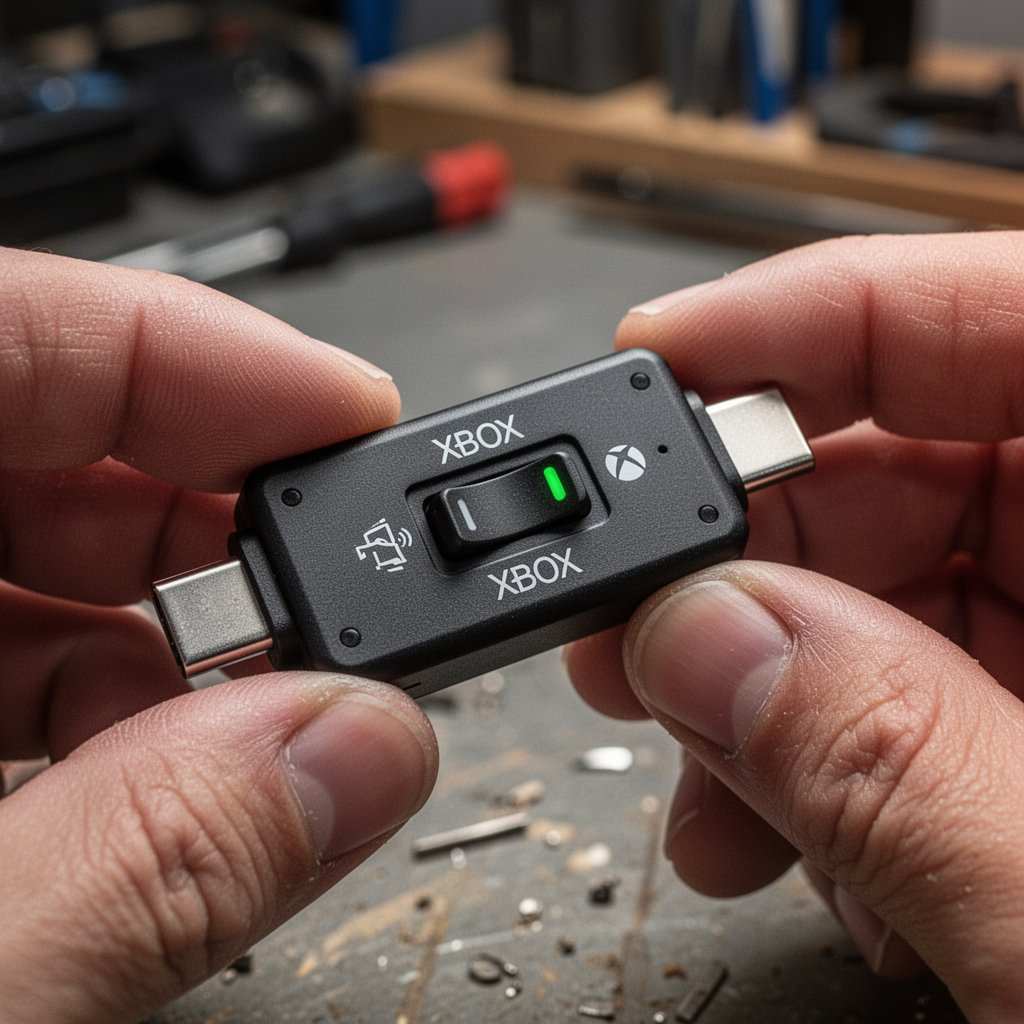
Step 1: Check the switch on your dongle.
Most multi-platform dongles have a switch for "PC/PS" and "Xbox." Ensure it is flipped to "Xbox."
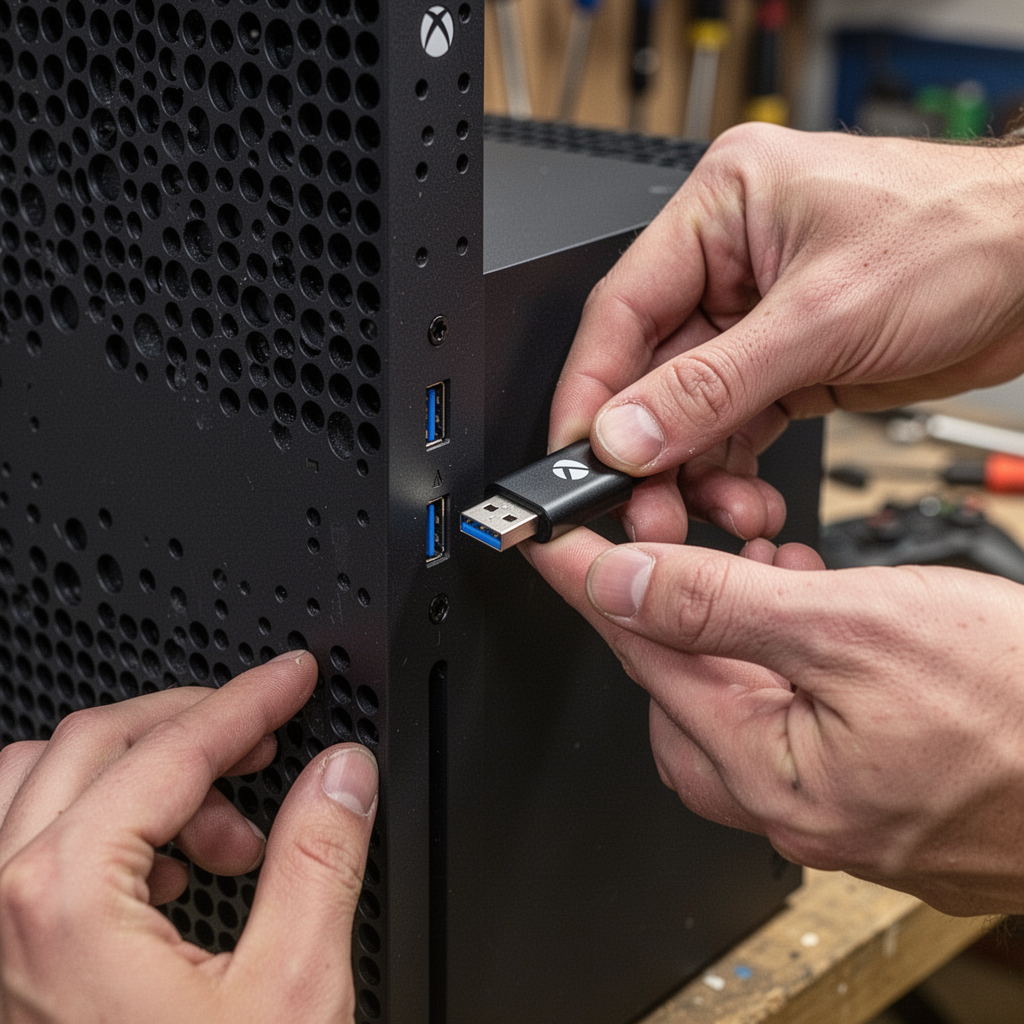
Step 2: Plug the dongle into the USB-A or USB-C port.
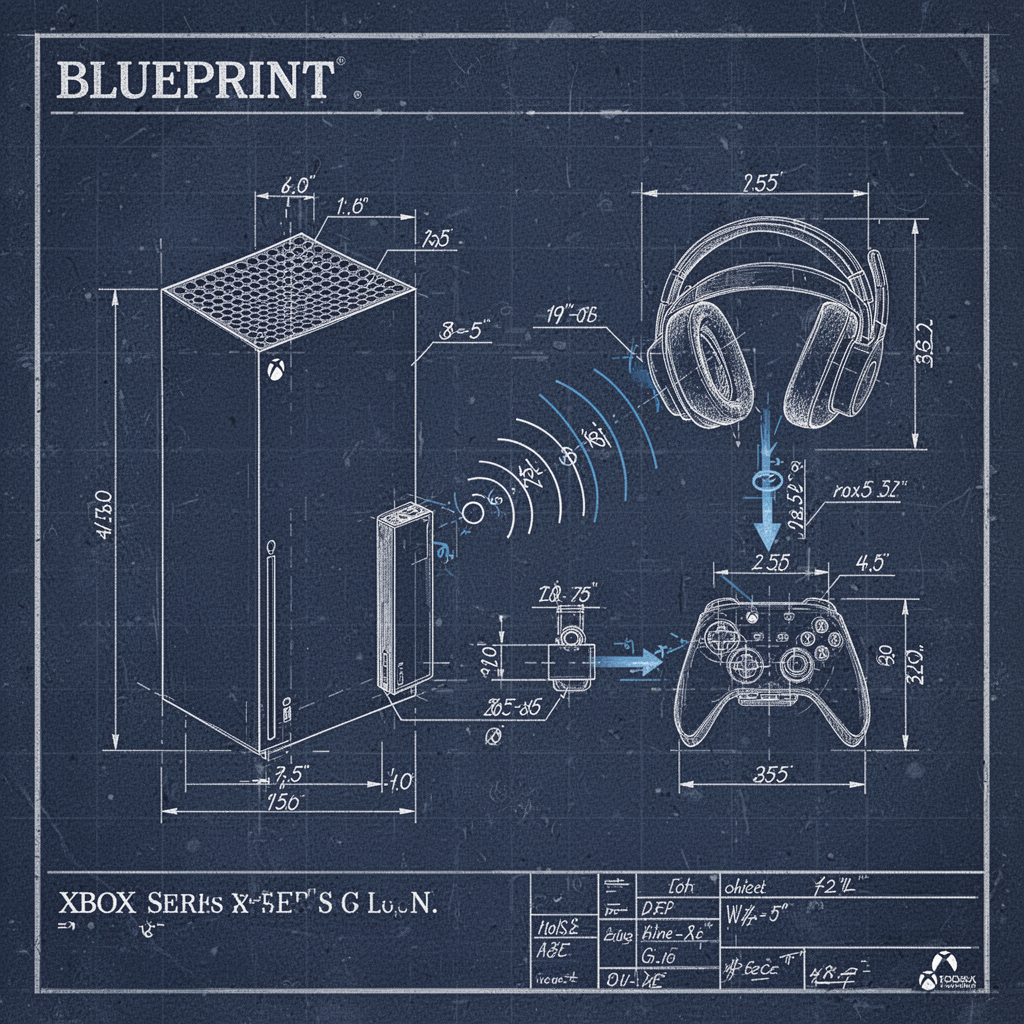
The Series X has a high-speed USB-A port on the front and two on the back. Plug the dongle into a front port for the best signal strength.
Step 3: Toggle the connection.
Turn on your headset. If the dongle is plugged in, the headset should automatically handshake with the transmitter.
Beginner Tips and Common Mistakes
- Firmware Updates: Never skip the firmware update. Use the "Xbox Accessories" app on your console to check for updates for both your controller and your headset.
- The Interference Trap: Avoid placing your Xbox inside a closed cabinet. Metal and wood can significantly degrade the wireless signal.
- Battery Levels: A dying headset battery can cause "stuttering" audio that mimics connection issues. Charge it fully before your first gaming session.
- Mistake: Using Bluetooth: Remember, the Xbox Series X does not support standard Bluetooth audio. You cannot simply "connect" your phone's Bluetooth headphones to the console directly.

Bluetooth Headset with 72-Hour Talk Time & 500mAh Charging Case, Bluetooth V5.3 Headset with Noise Cancelling Mic – Wireless Earpiece Hands-Free Headphones for Office Trucker Driving Business,Black
FAQ: Frequently Asked Questions
1. Can I use my Bluetooth earbuds with the Xbox Series X? Directly? No. However, you can use the Xbox mobile app to stream game audio to your phone, then connect your Bluetooth earbuds to your phone.
![[2 Pack] Bluetooth Earpiece Wireless Handsfree Headset V5.0 24 Hrs Driving with Mic 60 Days Standby Bluetooth Headset for iPhone Android Samsung Driver](https://m.media-amazon.com/images/I/61mU2HbKRVL._AC_UY218_.jpg)
[2 Pack] Bluetooth Earpiece Wireless Handsfree Headset V5.0 24 Hrs Driving with Mic 60 Days Standby Bluetooth Headset for iPhone Android Samsung Driver
2. Why is my headset audio cutting out? This is often caused by Wi-Fi interference. Try to keep your router away from the console, or switch your router to the 5GHz band if possible.
3. Do all "Wireless" headsets work on Xbox? No. They must be explicitly labeled as "Compatible with Xbox" or feature an Xbox-certified wireless chip.
4. How do I adjust game/chat mix? If your headset has a built-in "Chat Mix" wheel, use that. Otherwise, go to Settings > General > Volume & audio output > Headset chat mixer.
5. Is the Xbox Accessories app necessary? Yes, it is the only way to customize EQ settings and update the headset firmware for better compatibility.
6. Will my PS5 headset work on Xbox? Only if it is a dual-platform headset that includes a physical switch or specific Xbox certification. Most standard PS5 wireless headsets will not work.
7. Does the 3.5mm jack affect wireless connectivity? Plugging in a 3.5mm cable usually turns off the wireless radio to save battery, effectively making it a wired headset.
8. Can I connect two headsets at once? No, the Xbox Series X only supports one wireless headset connection at a time.
Safety Tips
- Volume Control: Protect your hearing by keeping the volume level below 70% during long sessions.
- Cable Management: If you are charging while playing, ensure your USB cable is not a tripping hazard for yourself or others.
- Electronics Maintenance: Keep your console ports clean of dust using compressed air to ensure a solid connection for your wireless dongles.
Conclusion
Connecting a wireless headset to your Xbox Series X shouldn't be a hurdle between you and your gaming experience. By identifying whether your headset uses the Xbox Wireless protocol or a USB transmitter, you can troubleshoot any issues with confidence. Always remember to check for firmware updates through the Xbox Accessories app, as this is the most common fix for connectivity gremlins.
With your audio setup perfected, you are now ready to experience the full potential of your console. Whether you’re climbing the ranked leaderboards or enjoying immersive campaign narratives, having crystal-clear sound is the ultimate upgrade. If you haven't yet found the perfect headset, consider investing in a high-quality, Xbox-licensed device like those featured above to ensure a seamless "plug-and-play" experience. Now, adjust those volume settings, invite your squad, and get back into the action!